ComfyUI - OOM: How to fix out of memory errors
notalice
2025-12-14
You ever had a generation interrupted due to an OOM error? I know how frustating that is.
In this article I will explain what that is, how to avoid it, and when you should actually risk an OOM.
What is the OOM error?
This error is not exclusive to ComfyUI, any application can run out of video memory, but ComfyUI is very clever when it comes to detecting when an OOM will happen, so it warns you right away.
OOM is a short for "out of memory", when generating an image or video, two things matter, VRAM, and RAM.
VRAM is the video memory, it's used to store data quickly accessible on your video card, in games these would be textures, buffers, depth information, etc, data used to render your virtual world.
In the context of stable diffusion, and generative artificial intelligence models, we store checkpoints in the VRAM, for example Illustrious, SDXL, Pony, etc, these are large neural network models that go right into your VRAM.
There are other more cryptic messages that are also an OOM: "CUDA out of memory", "Allocation on device 0 would exceed allowed memory", "XPU out of memory", these are all the same thing, but often ComfyUI will send a more nice user-friendly message, if you are using other tools, you might get one of these cryptic messages.
Fixing memory issues: is it a VRAM or RAM issue?
The first step to start fixing these issues, is to know what "flavor" of memory issue we are getting.
When getting an OOM in ComfyUI, it will be descriptive about what has happened.
For example:
"Allocation on device. This error means you ran out of memory on your GPU."
This is a classic VRAM issue.
If the error does not mention GPU, then it should be RAM, if it stills mention memory.
If everything freezes or if you get a blue screen on Windows, it also suggests a RAM issue, not VRAM.
There is a third error, which is less common, it will be an allocation error, but related to storage, which means your storage is full, deleting some files will fix that one.
If you are new to stable diffusion, here are some quick sanity checks before proceeding:
- Make sure you have free space on your storage
- Does the error mention GPU, VRAM, or "Video"? Most likely a VRAM issue.
- Does the error mention "memory", RAM, and none of the above? Most likely a RAM issue
- Does the PC freeze, or even crash? Most likely a RAM issue, although you can check the journal on Linux or the event viewer on Windows, to rule out a video driver issue.
Fixing VRAM issues with ComfyUI
If you are running into VRAM issues, first you should analyze your workflow.
- Are you using too many ControlNets?
- Are you loading too many models for different things? Segmentation, detailing, upscaling, etc
- Did the issue start after adding a new node to your workflow?
If any of these is true, consider re-evaluating your workflow, looking for smaller models for certain operations, and checking out some Clear VRAM nodes (many custom nodes come with this node).
But, if you get OOM with a simple workflow, then it might be real lack of VRAM.
If you have less than 8GB VRAM (6GB is pushing it), I recommend that you consider upgrading your video card, or using a cloud service to rent a GPU.
Making ComfyUI run with low vram mode on Windows
- On the file you use to run ComfyUI, which is named
run_nvidia_gpu.bat, right-click on it, and click edit
ComfyUI_windows_portable ├── ... a bunch of other files └── run_nvidia_gpu.bat
- On the line below:
.\python_embeded\python.exe -s ComfyUI\main.py --windows-standalone-build
Add the following: --lowvram.
So it will be:
.\python_embeded\python.exe -s ComfyUI\main.py --windows-standalone-build --lowvram
- Save and run the new file
Making ComfyUI run with low vram mode on Linux
- Add
--lowvramto the script or the command you use to run ComfyUI
For example: python main.py --lowvram
Additional VRAM tips
- Close any application that uses your VRAM, like Youtube, games, etc
- If your graphics driver is old, consider updating it, although it's unlikely that you would get the OOM issue due to a driver problem, updating your driver will rule-out many issues.
- Restart ComfyUI after long runs
- Click on the clean vram button on the top-right of ComfyUI after some generations
If you still have VRAM issues after the steps above, I would consider upgrading the video card, or renting the cloud GPU, you can get some decent machines for $1/hour for stable diffusion out there.
Fixing RAM issues with ComfyUI
ComfyUI orchestrates the usage of RAM and VRAM in clever ways, but if you lack RAM, it will make you run into issues.
To disable this optimization, simply add the extra parameter --disable-smart-memory
So for Windows:
.\python_embeded\python.exe -s ComfyUI\main.py --windows-standalone-build --lowvram --disable-smart-memory
And for Linux:
.\python_embeded\python.exe -s ComfyUI\main.py --lowvram --disable-smart-memory
This will slow down things, but it will make you able to run generations at least.
As always with RAM issues, you can close all other open applications, look for RAM-heavy applications, like Chrome tabs, Discord, etc.
For a RAM upgrade, I would suggest a 64gb RAM for future-proof, or 32gb, the 64gb is better if you are running other apps while generating images/videos.
If you are tight on budge, you can look for low speed RAM, but with a lot of GBs.
OOM with control nets
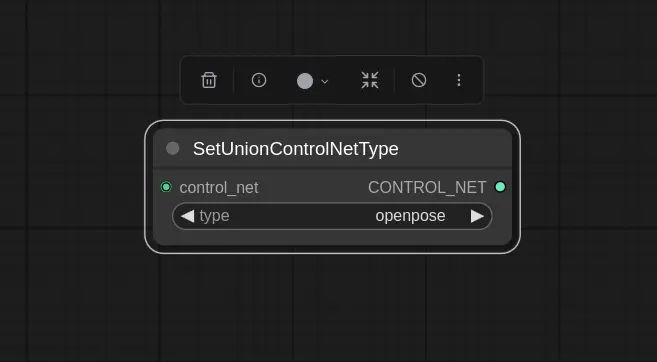
If you get VRAM issues when using too many control nets, one solution is to use a Union control net.
The union supports different types of control nets with a single model, and the quality is often good enough.
To do that, simply download a union model, and use the "SetUnionControlNetType" node to pick what you want to use.